What is Jenkins?#
Jenkins is an open-source automation tool written in Java. It helps developers build, test, and deploy their software automatically, making Continuous Integration (CI) and Continuous Delivery (CD) possible.
CI: Continuous Integration
Automatically building and testing code whenever changes are pushed.
CD: Continuous Delivery
 Automatically deploying/releasing the code to production or staging.

Together, CI/CD makes your workflow faster, safer, and hands-free.
In simple terms:
Jenkins watches your code and runs jobs (like building or testing) whenever you push changes — saving you tons of manual work.
Jenkins is a server. It’s a program you install on a machine (your own computer, a VPS, or cloud) that:
- • Runs 24/7.
- • Waits for code changes (like GitHub push).
- • Does tasks you define (build, test, deploy).
- • Reports the results.
Why Use Jenkins?#
- Automate repetitive tasks like testing and deploying.
- Supports a wide range of plugins and tools.
- Saves time in large teams and projects.
- Detects bugs early by testing code regularly.
- Web-based interface for managing jobs easily.
Key Concepts to Know#
| Term | Meaning |
|---|---|
| Job / Project | A task that Jenkins runs (e.g., build, test). |
| Build | The process of compiling code, running scripts, etc. |
| Pipeline | A set of steps that automate the process from build to deployment. |
| Node / Agent | A machine that runs Jenkins jobs (can be remote). |
| Plugin | Extension that adds new features to Jenkins. |
How to Install Jenkins on Ubuntu (Beginner-Friendly)#
Step 1: Install Java#
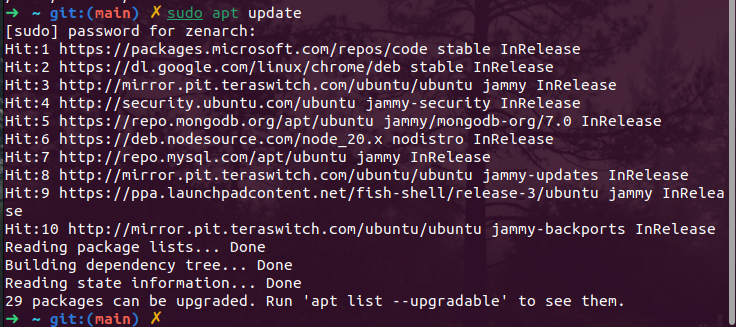
Then run: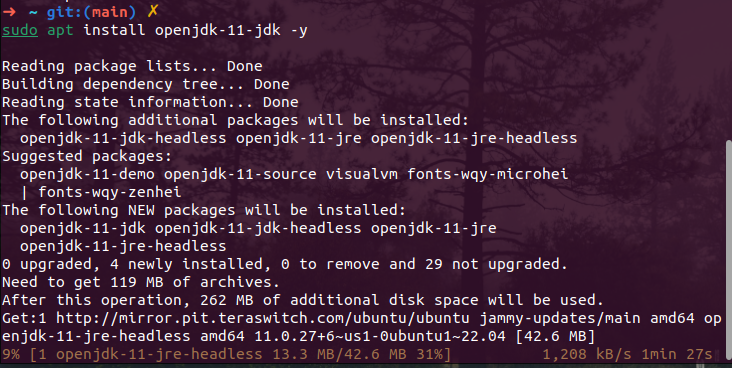
Check the Java version:
Step 2: Add Jenkins Repository#

Step 3: Install Jenkins#
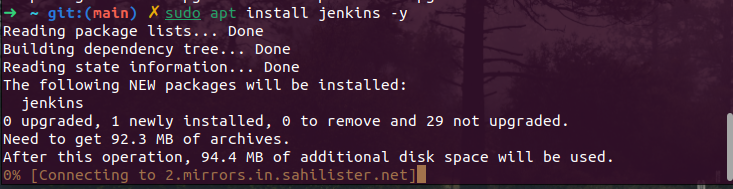
Step 4: Start and Enable Jenkins#


Then check the status if its active: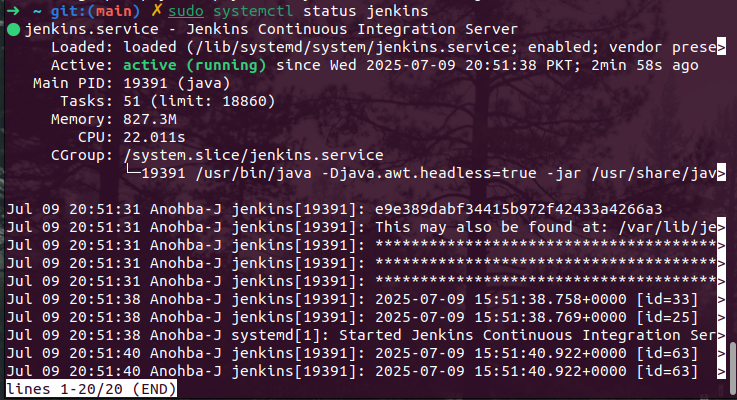
Step 5: Open Jenkins in Browser#
Visit: http://localhost:8080
To unlock Jenkins, run:

Paste the password in your browser when prompted.
Proceed with the steps required and
it will get you to the main Jenkins page: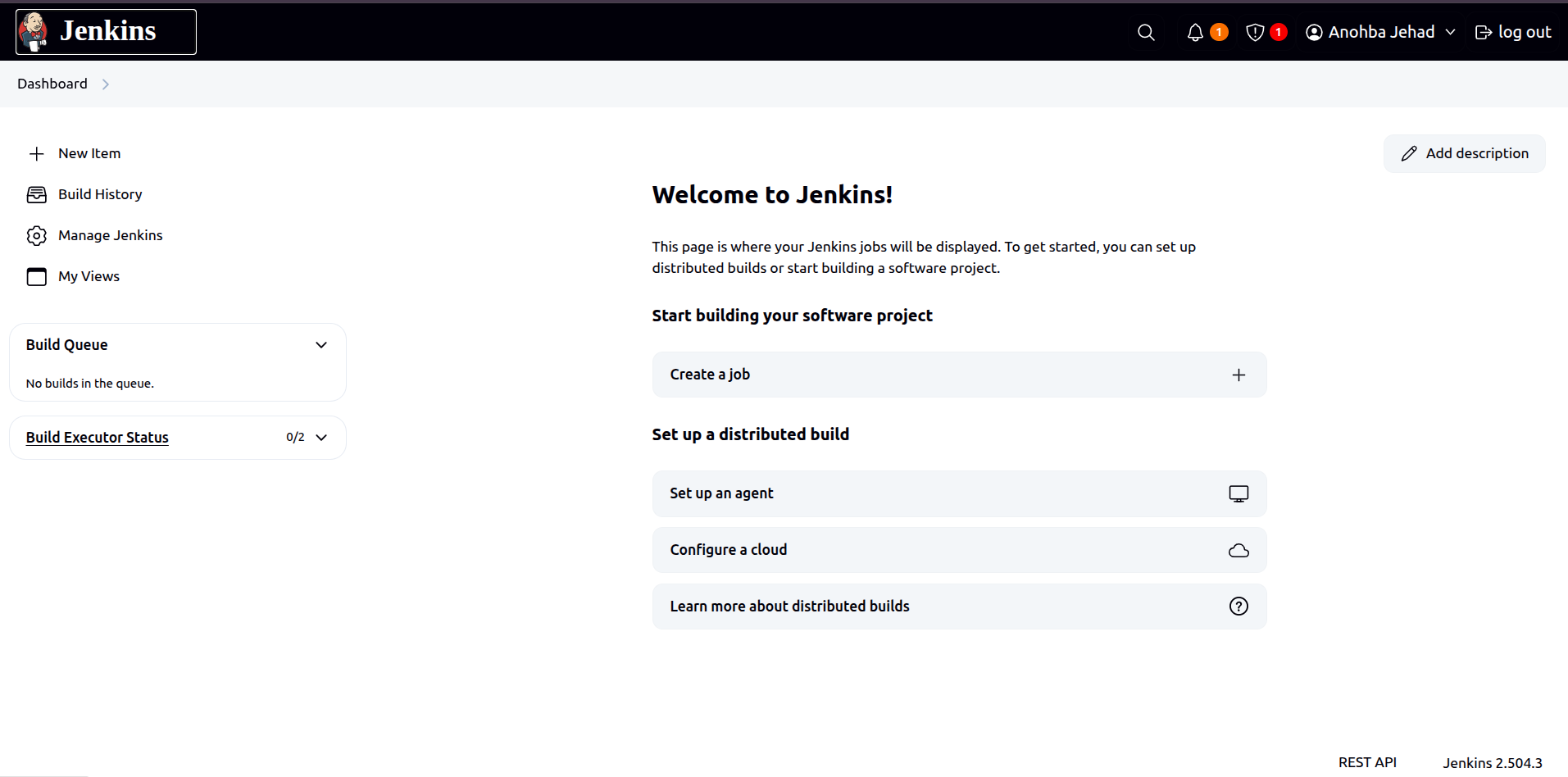
Setting Up Your First Job (Freestyle Project)#
Go to
Dashboard > New ItemChoose
Freestyle projectand give it a nameIn
Build Steps, choose:
Execute shellfor Linux commandsOr
Execute Windows batch commandfor Windows
- Add your script like:
echo "Hello from Jenkins!"- Click Save, then Build Now
Jenkins will run your job and show you output in the Console Output.
Jenkins Pipeline (Scripted Automation)#
Create a new Pipeline job and use the following example script:
pipeline {
    agent any
    stages {
        stage('Build') {
            steps {
                echo 'Building the project...'
            }
        }
        stage('Test') {
            steps {
                echo 'Running tests...'
            }
        }
        stage('Deploy') {
            steps {
                echo 'Deploying the project...'
            }
        }
    }
}
Integrating Jenkins with Git (or GitLab)#
Jenkins works best when connected to a version control system like GitHub or GitLab. This allows Jenkins to:
- Watch for new code pushes
- Automatically trigger builds and tests
- Pull code into your pipeline jobs
Example (GitLab):#
- Install the Git Plugin (if not already).
- Create a Personal Access Token in GitLab.
- In Jenkins, go to
Credentials > Add Credentialsand enter your GitLab token. - Create a new Pipeline or Freestyle job.
- Under
Source Code Management, chooseGitand paste your GitLab repo URL.
Now every time you push to GitLab, Jenkins can respond automatically.
Useful Plugins to Explore#
| Plugin | Purpose |
|---|---|
| Git Plugin | Integrate with Git repositories |
| GitHub Integration | Trigger builds from GitHub pushes |
| Pipeline Plugin | Use Jenkinsfile for automation workflows |
| Email Extension | Send notifications based on build status |
| Docker Plugin | Build and run Docker containers via Jenkins |
Final Thoughts#
Jenkins is like your project manager robot — it does the boring and repetitive tasks so you can focus on writing code.
With its powerful CI/CD pipelines, plugin ecosystem, and integration options, Jenkins is trusted by teams all over the world to ship better software — faster.
Once you’re comfortable with the basics, explore more advanced topics like:
- Shared Libraries (DRY pipelines)
- Blue Ocean (visual pipeline editor)
- Dockerized builds
- Jenkins + Kubernetes or AWS for cloud deployments
- Jenkins + GitLab CI integration
Jenkins is not just a tool, it’s the engine behind modern DevOps.
Jenkins Installation Commands#
sudo apt update
sudo apt install openjdk-17-jdk
java -version
wget -q -O - https://pkg.jenkins.io/debian-stable/jenkins.io.key | sudo tee /usr/share/keyrings/jenkins-keyring.asc > /dev/null
echo deb [signed-by=/usr/share/keyrings/jenkins-keyring.asc] https://pkg.jenkins.io/debian-stable binary/ | sudo tee /etc/apt/sources.list.d/jenkins.list > /dev/null
sudo apt update
sudo apt install jenkins
sudo systemctl enable jenkins
sudo systemctl start jenkins
sudo systemctl status jenkins
sudo cat /var/lib/jenkins/secrets/initialAdminPassword