When it comes to shells, most of us are familiar with Bash, the default shell in many Linux distributions. However, for those looking for a more user-friendly, modern experience, Fish Shell is a great alternative.
What is Fish Shell?#
Fish, which stands for Friendly Interactive Shell, is a user-friendly shell designed to be easy to use and understand for both beginners and advanced users. Unlike other shells like Bash, Zsh, or Tcsh, Fish prioritizes simplicity, intuitive features, and efficiency. It’s often regarded as one of the most modern shells for Linux and macOS systems.
Fish has evolved as a great tool for developers and sysadmins who want a shell that works out-of-the-box with minimal configuration while still providing powerful features for daily use.
Unique Features of Fish Shell#
- Autosuggestions based on command history, shown inline as you type.
- Syntax highlighting for commands and arguments — errors are visible instantly.
- Built-in web-based configuration tool via
fish_config. - User-friendly scripting syntax — no need for extra quoting or export.
- Smart tab completions for commands, options, files, and directories.
- Multi-line editing makes writing long commands easier and clearer.
- No external plugins required for basic features — works great out of the box.
Disadvantages of Fish Shell#
- Not compatible with traditional Bash scripts — different syntax.
- Some third-party tools and scripts assume Bash or Zsh, which can cause issues.
- Not pre-installed or set as default in most systems — requires manual setup.
- Learning curve for users transitioning from Bash, especially for scripting.
- Community is smaller than Bash or Zsh, meaning fewer plugins and tutorials.
Terminal Lit. Credit: Fish#
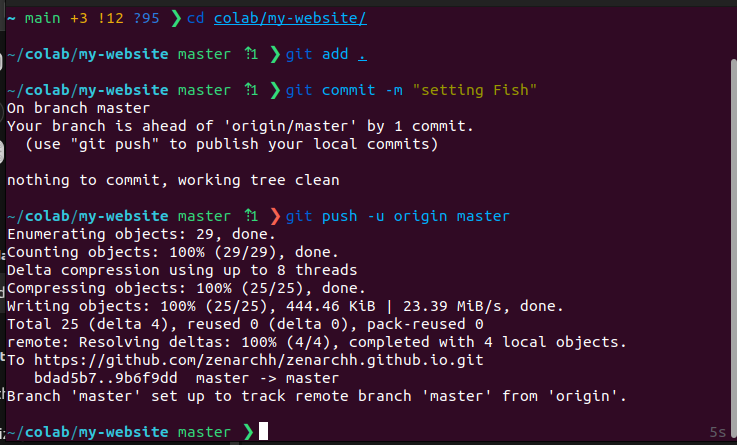
What it means overall:#
~ main +3 !12 ?95 ❯You’re inside a Git repository, on the main branch, with:
3 staged
12 unstaged
95 untracked changes
That’s a busy Git workspace! 😅
Here’s how you can set your own Fish:-#
Setting Up Fish on Ubuntu#
Getting started with Fish Shell is straightforward, and the setup process on Ubuntu is simple:
Install Fish:#
Open a terminal and run the following command to install Fish from the default Ubuntu repositories:
sudo apt update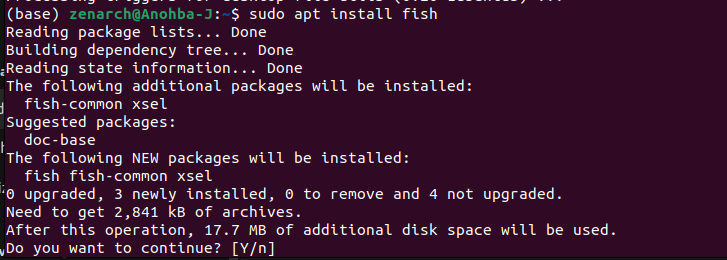
Set Fish as Your Default Shell:#
To set Fish as your default shell, run:

You’ll need to log out and log back in for the change to take effect.
To Test It Now:#
You can either:

…and then reopen your terminal.
Or just type:
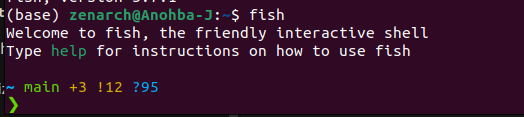
…to switch to Fish in the current session right away.
Install Fisher (Plugin Manager for Fish):#
Fish has its own plugin manager called Fisher. To install it, run:

Step 3: Install Tide Prompt (Optional but Awesome)#
Once Fisher is installed, install Tide (a beautiful and customizable prompt):

Then run the configuration wizard:
tide configure…and set the theme according to your flavor and taste.
Use the Web-Based Configuration Tool:#
You can also configure Fish through a web interface by running:
fish_configThis will open a browser window with interactive options for customizing Fish.
Note: Tide v5 requires Fish 3.6 or newer version, you might see errors like:
- $(…) is not supported. In fish, please use ‘(…)’
- string length: Unknown option “-V”
- set: Unknown option “-f”
Here’s how to fix it:#
Upgrade Fish to the latest version#
Add the official Fish repository:
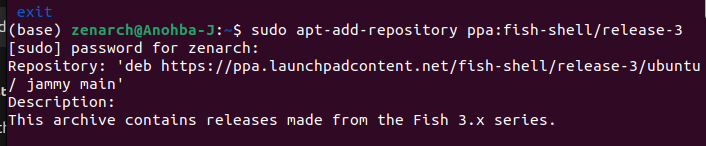
sudo apt updateUpgrade Fish:
Check the version:

Conclusion#
Fish Shell is a modern, powerful, and user-friendly shell designed to improve your terminal experience. Its intelligent features like autosuggestions, syntax highlighting, and a web-based configuration tool make it a top choice for developers, sysadmins, and anyone who spends significant time in the terminal.
While Fish has some drawbacks, such as compatibility with Bash scripts and software, its overall features make it a standout in the world of Unix-like shells. If you’re looking for a new shell to explore or need a more efficient terminal experience, Fish is definitely worth considering.