“Build once, run anywhere.”
That’s not a dream - that’s Docker.
What is Docker?#
Docker is an open-source platform that allows you to develop, ship, and run applications inside containers. Containers package your app along with its environment, dependencies, and tools - making them portable, lightweight, and consistent across all platforms.
Why Docker?#
Traditional VMs vs Docker
| Feature | Traditional VM | Docker |
|---|---|---|
| OS Architecture | Heavy OS per VM | Shared kernel, lightweight |
| Boot Time | Slower boot time | Fast boot/startup |
| Resource Usage | More resources used | Less CPU/RAM needed |
| Portability | Hard to move | Easy to share or deploy |
Use Docker when you want to:
- Avoid “It works on my machine”
- Speed up development and CI/CD
- Build microservices
- Scale easily
Docker Architecture#
Core Components:#
Docker Host:Docker Host or Docker Engine is the brain of docker. It conatians docker daemon that runs in the background, manages Docker objects (containers, images, networks).Docker Client:The command-line interface to talk to the daemon.Docker Objects:It includes:- Images: Blueprint for containers/app
- Containers: running instances of app
- Volumns: Storing persistent data into host system
- Network:
Docker Registries:Central hubs for sharing /storing images (like Docker Hub, GitHub etc).
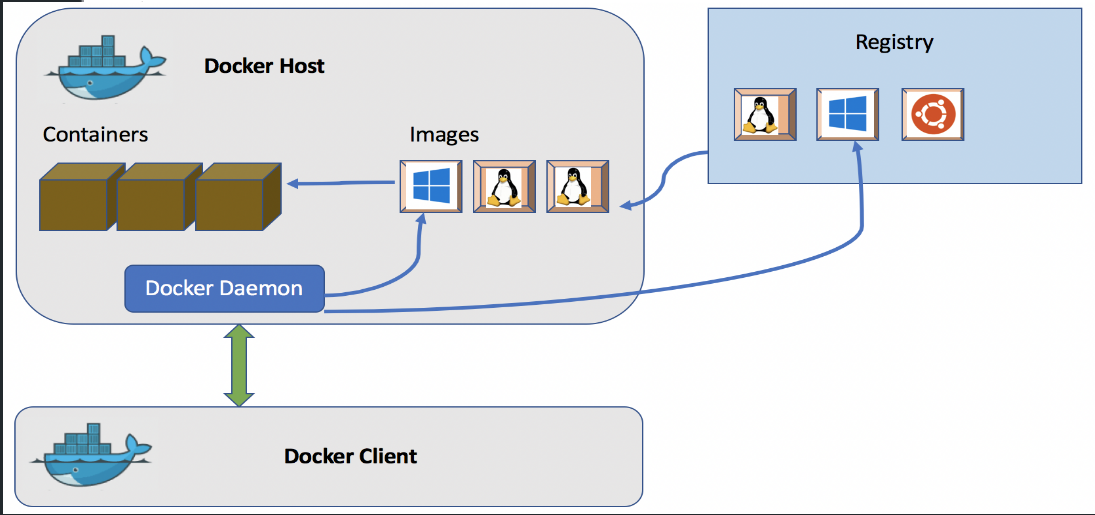
Developer → Docker CLI → Docker Daemon → Container → ApplicationInstalling Docker#
Ubuntu:#
sudo apt update
sudo apt install docker.io
sudo systemctl start docker
sudo systemctl enable docker
Check version:
docker --versionEnable running without sudo:
sudo usermod -aG docker $USERManjaro KDE:#
Update your system and install docker:
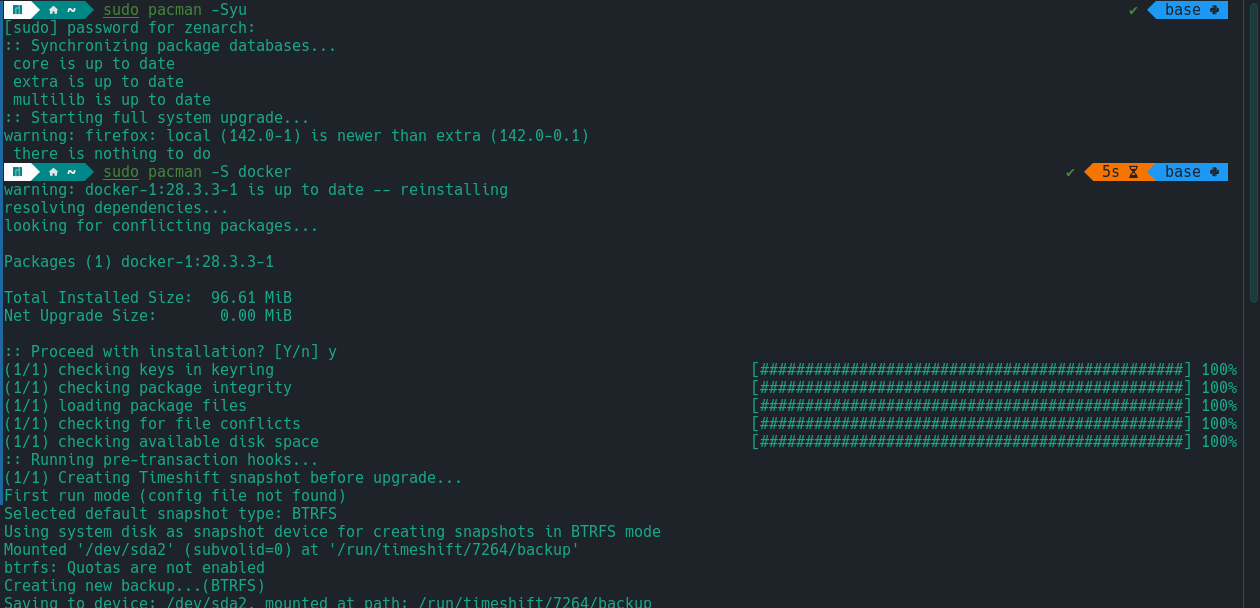
Enable docker and check version:

Basic Docker Commands#
Working with Images#
- Create a Dockerfile (Script to create an image):
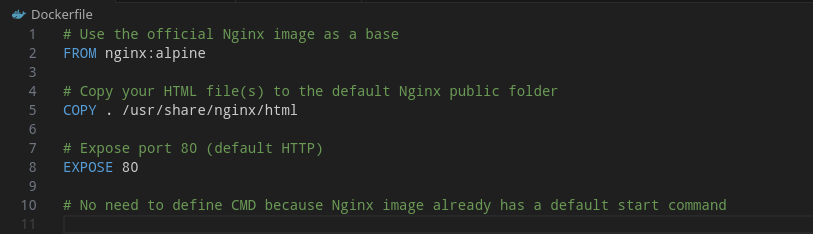
Build an image from dockerfile:
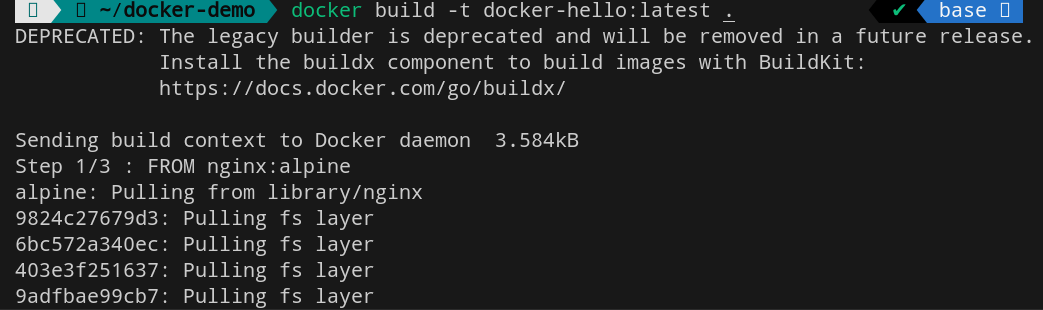
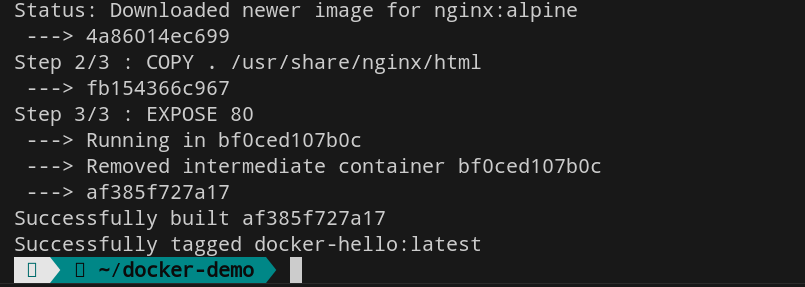
Delete an image:

Working with Containers#
- Run a container from an image:
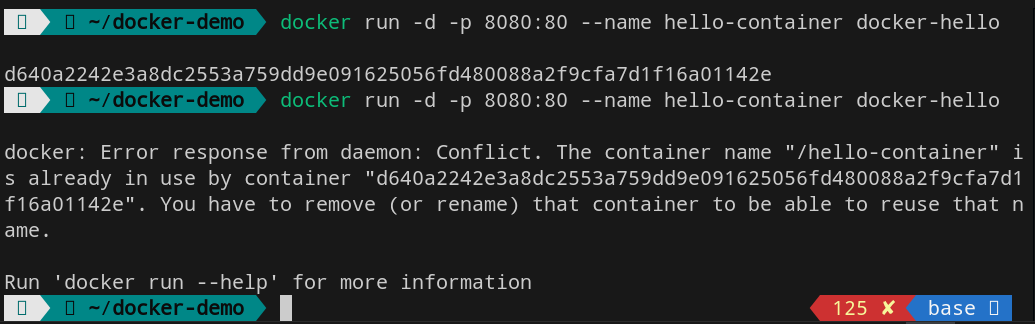
Note:You cannot create two containers with same name.
Open browser http://localhost:8080 , you’ll see: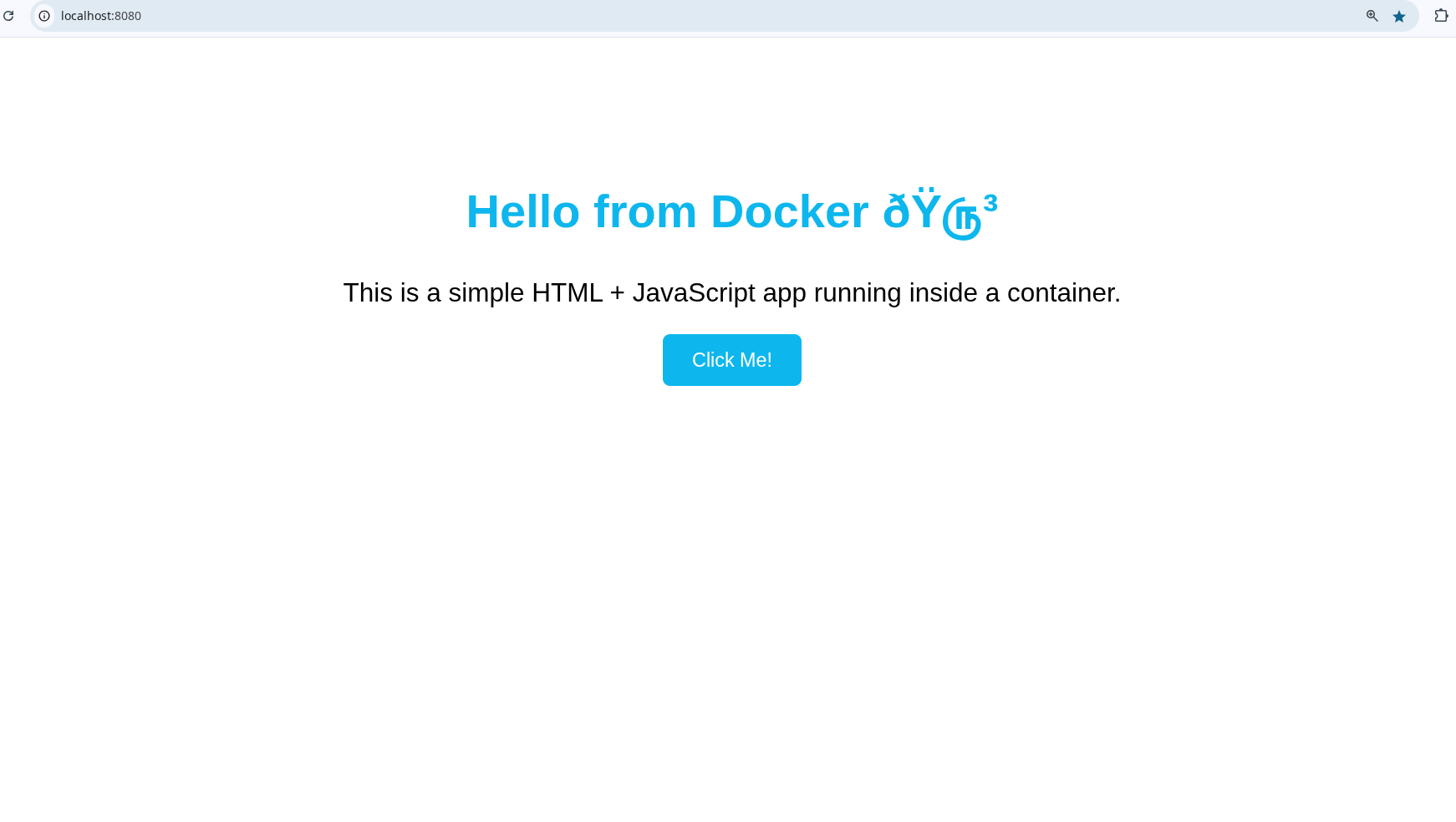
List active containers:

List all containers (including stopped ones):

Stop a running container or remove a container:

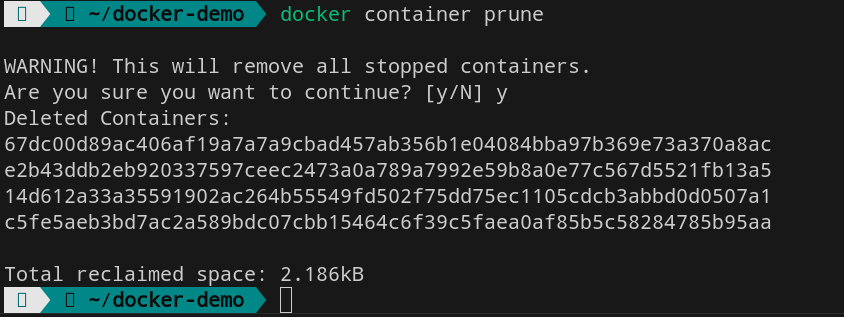
Delete all containers at once:
Introduction to Docker Compose#
What is Docker Compose?#
Docker Compose is a tool to define and manage multi-container applications.
Instead of running containers manually one by one, you define them in a docker-compose.yml file and start them all with a single command.
A sample docker compose.yml file: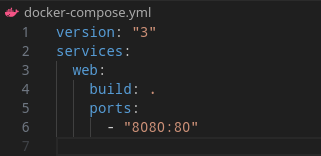
Installation of Docker Compose#
Install docker compose:
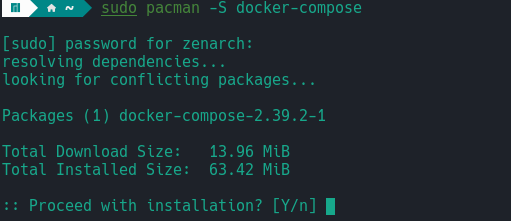
Verify if installation is successful:

Rebuild images and start containers in background:
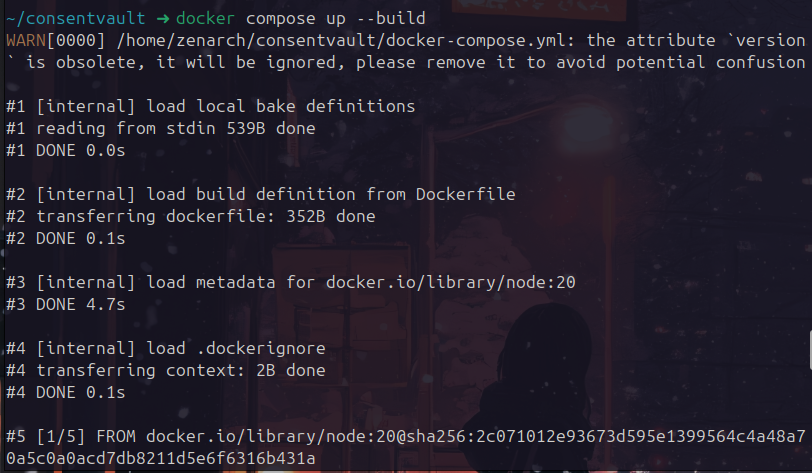
Lists the containers (services) that are running (or have been created) using your docker-compose.yml file:
docker compose ps- Stops all running containers defined in your Compose file, but does not remove them:
docker compose stop- Starts containers that were previously stopped using:
docker compose start- Stops and removes all the containers, networks, and by default also volumes that were created by:
Docker vs Kubernetes#
| Feature | Docker | Kubernetes |
|---|---|---|
| Purpose | Containerization | Orchestration |
| Scale | Manual | Auto-scaling, rolling updates |
| Networking | Simple | Complex but powerful |
| Use case | Dev & CI/CD | Production, large systems |
Real-World Use Cases#
CI/CD Pipelines:Jenkins + DockerLocal Dev Environments:VSCode devcontainersMicroservices Architecture:API Gateway + Services + DBEdge Computing:IoT and Raspberry Pi deploymentsApp Distribution:One image, many platforms
Conclusion#
Docker is no longer optional - it’s essential for modern software development. Whether you’re building a Node.js app, a Python API, or a full-stack microservice, Docker gives you consistency, speed, and portability.
Bonus: Quick Reference Sheet#
sudo systemctl start docker
sudo usermod -aG docker $USER
newgrp docker


docker build -t docker-hello .
docker run -d -p 8080:80 docker-hello

docker ps                     # See running containers
docker ps -a                  # See all containers (even stopped ones)
docker stop hello-container   # Stop a running container
docker start hello-container  # Start it again
docker rm hello-container     # Remove a container
docker images                 # List all images
docker rmi docker-hello       # Remove an image

sudo pacman -S docker-compose

v2 → docker compose up -d
v1 → docker-compose up -d


docker compose ps         # Show running services
Open browser http://localhost:8080
docker compose stop       # Stop all services
docker compose start      # Start them again
docker compose down       # Stop & remove everything